The Work board is your shop's home screen. It shows every active job and exactly which stage it's in — from the moment gear is dropped off to the moment it's picked up. You can view the same jobs four different ways depending on what you're trying to do.
Who can use it
- Everyone on your shop's team can view and use the Work board.
How to use it
Open the board
- Click Work in the left menu. (You also land here right after signing in.)
Switch between the four views
Use the view tabs near the top-right of the screen:
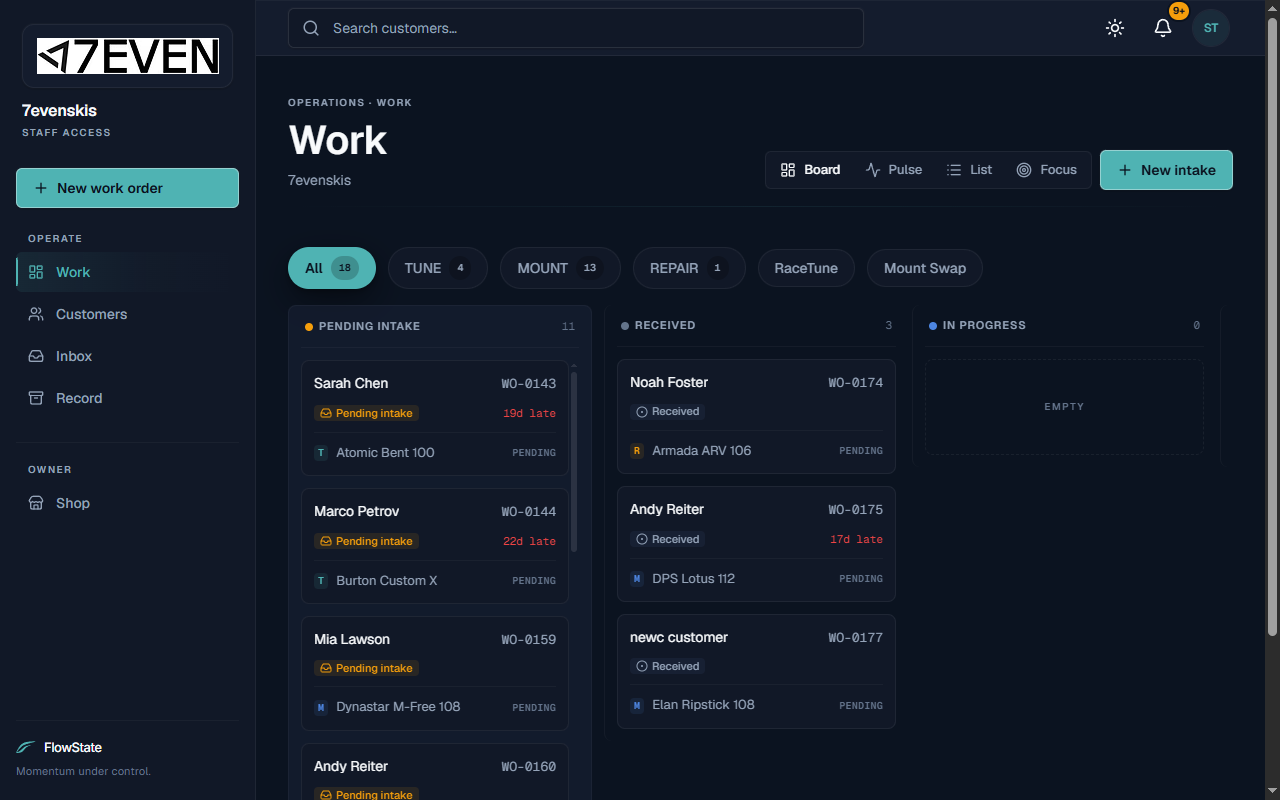
- Board — jobs as cards grouped into columns by stage. Best for seeing the whole shop at a glance.
- Pulse — a priority view that highlights what needs attention now (overdue, due today, ready for pickup) and money sitting on the shelf. Best for starting your day or shift.
- List — a sortable table of all jobs. Best for finding something quickly or sorting by due date.
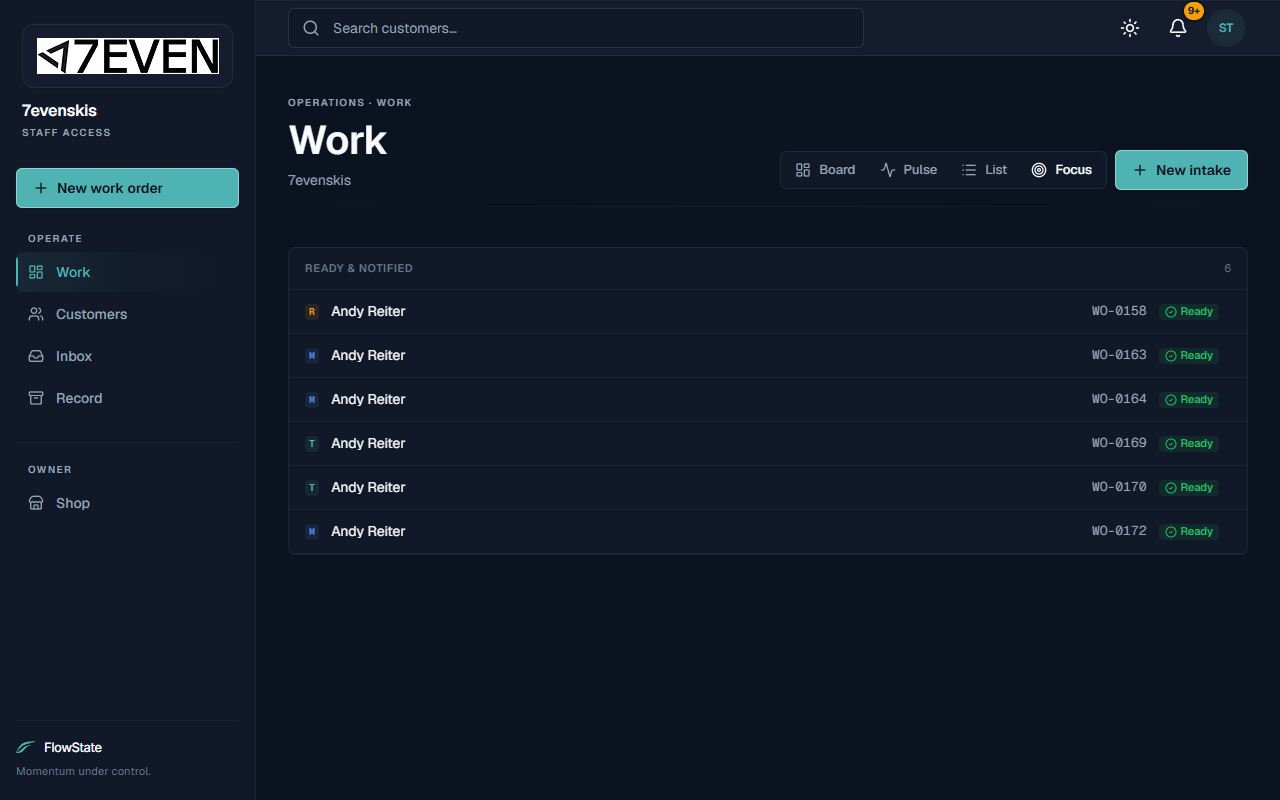
- Focus — a short list of just the Ready & notified orders waiting on customers. Best when you're handling pickups.
Filter by service type
Above the columns, click a service tab — for example All, TUNE, MOUNT, or REPAIR — to show only that type of work. Each tab shows a count so you can see your workload at a glance.
Open a job
- Click any job card (or table row) to open it.
- The work order opens in a panel where you can update it. See Managing a Work Order.
Read the columns (Board view)
Jobs move left to right through these stages:
- Pending intake — a request a customer submitted online that you haven't confirmed yet.
- Received — gear is checked in and the job is active.
- In progress — a tech is working on it.
- Ready — the work is done.
- Notified — the customer has been told it's ready for pickup.
Use the Pulse view to prioritize
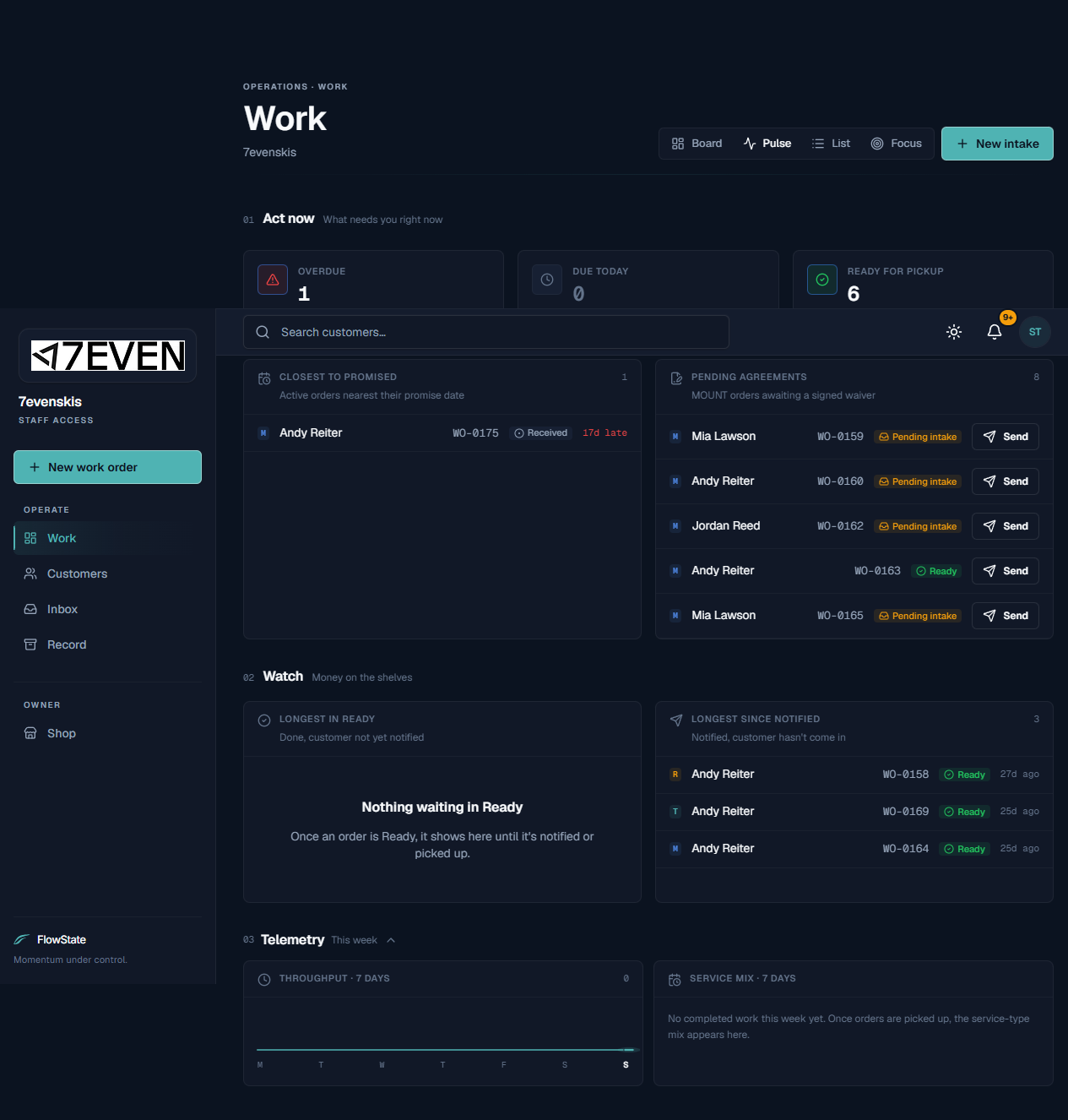
- Act now shows counts for Overdue, Due today, and Ready for pickup.
- Pending agreements lists mount jobs still waiting on a signed waiver, each with a Send button to text the customer a signing link.
- Watch flags orders sitting too long in Ready or waiting on a customer after being notified.
- Telemetry shows your throughput and service mix for the last 7 days.
Use the List view to find things fast
- Click a column heading (Customer, Order, Status, or Due) to sort.
- Use Per Page at the bottom to show more rows at once.
What to expect
- Cards show the customer name, order number (like WO-0143), current stage, and the equipment on the job.
- A red note like "19d late" means the job has passed its promised-by date.
- Counts on the service tabs and column headers update as jobs move and as new ones come in.
- Switching views never changes your jobs — it only changes how they're displayed.
Limitations
- The Work board shows active jobs only. Finished and picked-up orders live in The Record.
- You can't drag a card from one column to another to change its stage. Stages change by working inside the job (confirming intake, marking items done, entering each rack location). See Managing a Work Order.
- The board shows your shop only — never another shop's jobs.
Frequently asked questions
What does "Pending intake" mean? It's a job a customer started themselves through the online request page. It isn't active yet — you need to open it and confirm intake. See Using the Inbox.
Why is the "Ready" column empty but jobs show "Ready" in the last column? The last column gathers orders that are ready and have been notified for pickup, so you can find pickups in one place. The Focus view shows the same pickup list on its own.
What do the letters (T, M, R) on a card mean? They're a quick tag for the service: T for Tune, M for Mount, R for Repair.
How do I see only mounts that still need a waiver? Open the Pulse view and look at Pending agreements.
Troubleshooting
- A job I expected isn't on the board. It may already be picked up — check The Record. Or a service-type filter is on; click All to clear it.
- The counts look wrong. Refresh the page to pull the latest numbers.
- I can't move a card by dragging. That's expected. Open the job and update it from inside — see Managing a Work Order.