Once a job exists, you manage it from the work order panel. This is where you confirm a drop-off, set a promised-by date, mark each piece of gear as it's worked on, store it on a rack, tell the customer it's ready, and finally mark it picked up.
Who can use it
- Everyone on your shop's team can open and update work orders.
How to use it
Open a work order
- From the Work board, click any job card or table row. The order opens in a panel.
- To see it on its own page, click Open full page. To print stickers for the gear, click Print tags.
Confirm intake (for online requests)
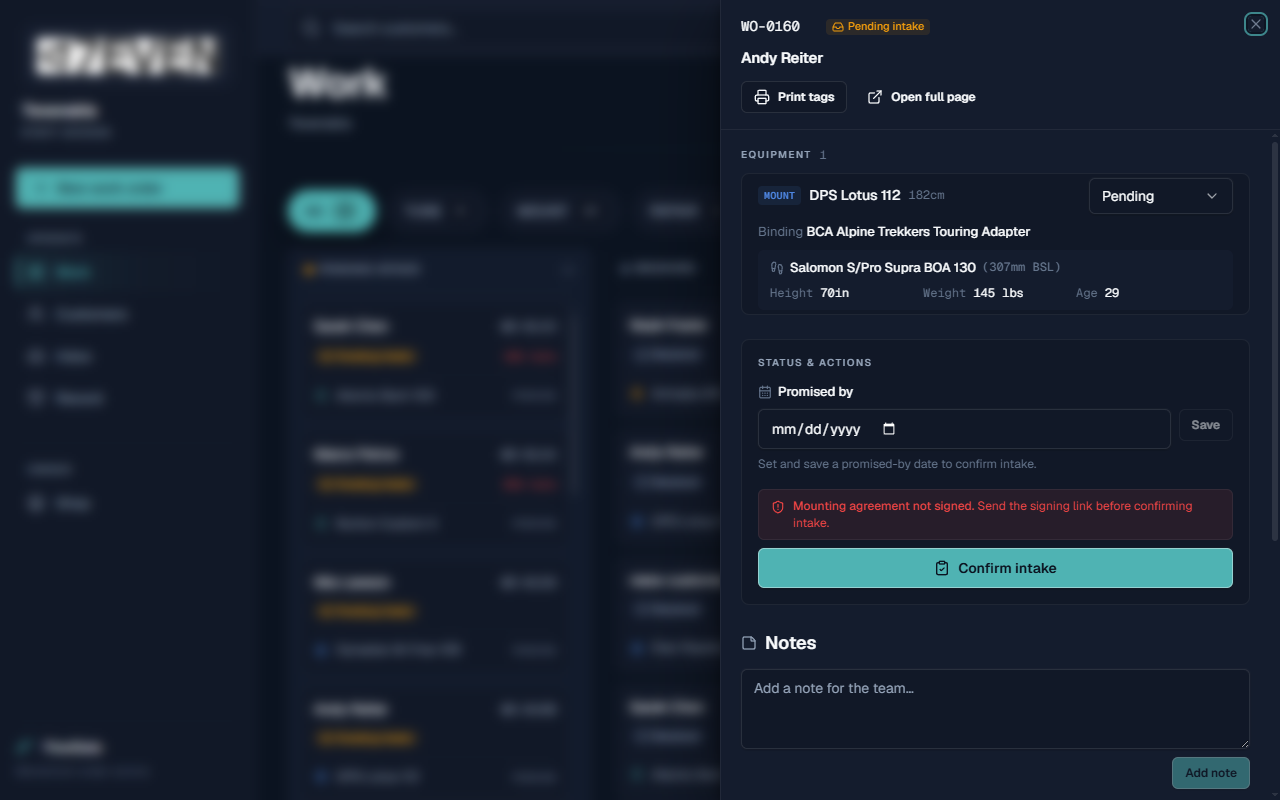
If the job is in Pending intake (a customer submitted it online):
- Set a Promised by date and click Save.
- For a Mount, make sure the Mounting agreement is signed first — see Mounting Agreements.
- Click Confirm intake. The job becomes Received and is now active.
Track work on each item
Each piece of equipment has its own status. To update it:
- Find the item under Equipment.
- Open its status dropdown and choose:
- Pending — not started.
- In progress — a tech is working on it.
- Done — finished.
When every item is Done, the order is ready for the customer.
Set or change the promised-by date
- In Status & actions, pick a date in Promised by.
- Click Save. This is the date the customer is told to expect their gear.
Assign a rack location
When gear is finished and stored:
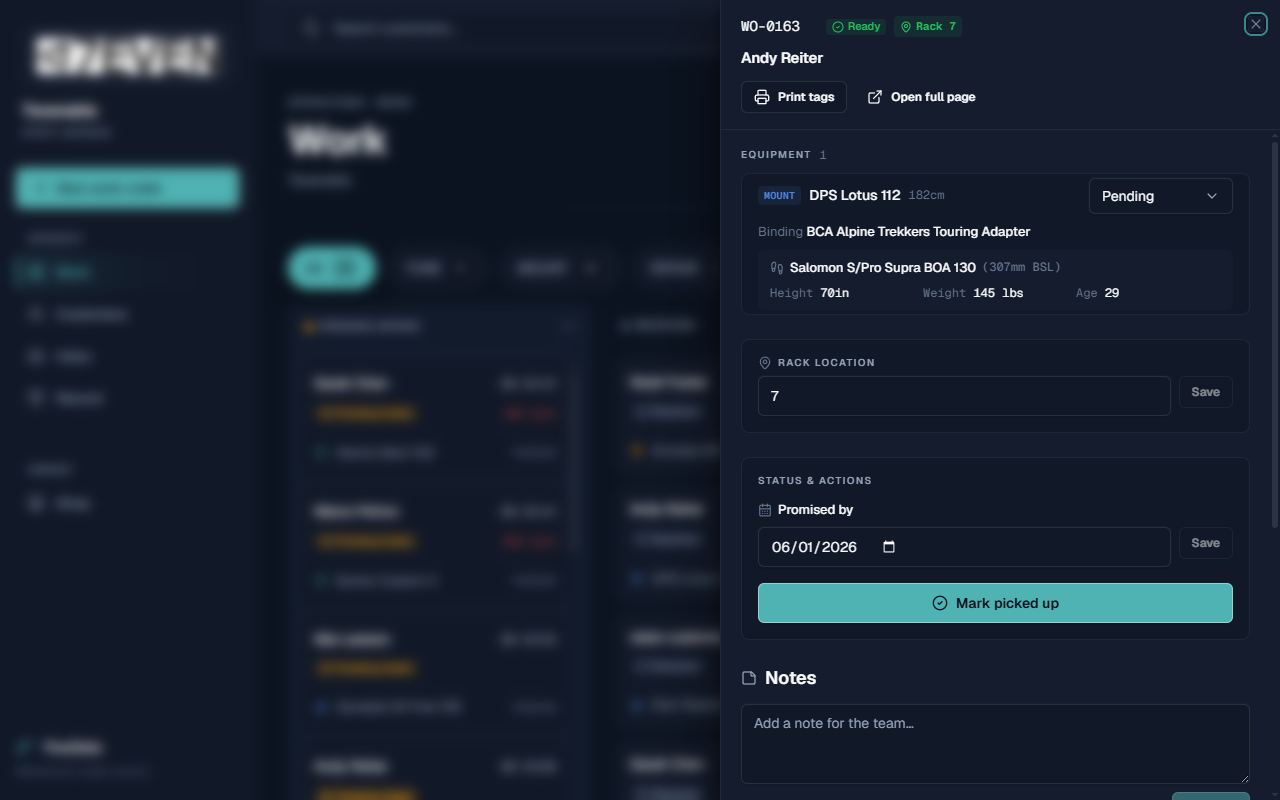
- In Rack location, type where it's stored (for example, A-5).
- Click Save. The rack shows on the job card so anyone can find it at pickup.
Tell the customer it's ready
There's no button to press. When every item on the order is Done and has a Rack location, FlowState sends the ready-for-pickup email on its own, plus a text if your shop's texting is set up, and moves the order to Notified.
Add a note for the team
- In Notes, type your message in Add a note for the team…
- Click Add note. Notes are visible to staff on the order — handy for "waiting on a part" or "customer wants a call first."
Close the job at pickup
- When the customer collects their gear, open the order.
- Click Mark picked up. The job leaves the active board and is saved in The Record.
What to expect
- The status badge at the top of the panel always shows the current stage.
- Save buttons stay greyed out until you actually change something.
- Setting an item to Done moves the job toward Ready. When the last item is done and racked, the customer is told and the order moves to Notified.
- After Mark picked up, the job disappears from the Work board and appears in the Record as Picked up.
- Copy next to the order number copies it (like WO-0143) so you can paste it into a label or message.
Limitations
- A Mount can't be confirmed for intake until its waiver is signed.
- Intake can't be confirmed without a promised-by date.
- Whether a text message is sent depends on your shop's messaging setup; email depends on the email setting. If neither is turned on, the customer won't get an automatic message — call them instead. See Shop Settings.
- The work order keeps a permanent history. Once a job is picked up it lives in the Record; you reopen the customer's profile to see their past work.
Frequently asked questions
How do I print a tag for the skis? Open the order and click Print tags.
What's the difference between an item being "Done" and the order being "Ready"? Each piece of gear is marked Done on its own. When all the items on the order are Done, the whole order is ready for the customer.
The customer came in to pick up — what do I click? Open the order and click Mark picked up.
Where do I see the customer's phone number? It's in the Customer section of the panel, along with a View profile link.
Can I leave a note only staff can see? Yes. The Notes section is for your team and isn't shown to the customer.
Troubleshooting
- The "Confirm intake" button won't work. Set and save a Promised by date first. For mounts, also send and collect the signed waiver — see Mounting Agreements.
- A change didn't stick. Make sure you clicked Save next to the field (rack and promised-by each have their own Save). If it still doesn't hold, refresh and try again.
- The customer says they didn't get a text. Your shop may not have text messages turned on, or only email is active. Contact FlowState to check, and call the customer in the meantime.
- I marked the wrong order picked up. Contact FlowState. Picked-up orders are kept in the Record for reference.