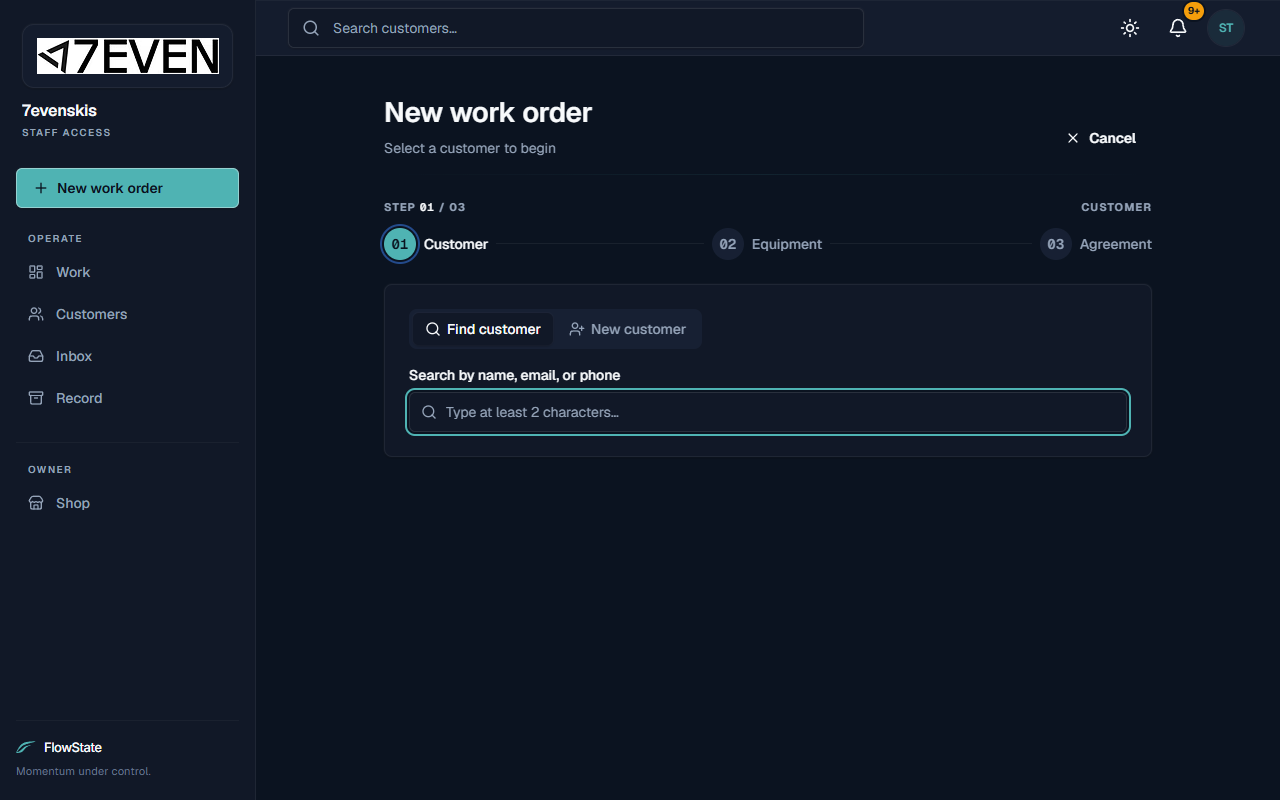
A work order is the record of a job for one customer's equipment. Creating one is how you check gear in at the counter. FlowState walks you through it in three short steps: pick the customer, add the equipment and service, and (for binding mounts only) collect the agreement.
Who can use it
- Everyone on your shop's team can create work orders.
How to use it
Start a new work order
- Click New work order in the left menu (or New intake on the Work board).
Step 1 — Choose the customer
You can either find an existing customer or add a new one.
To find an existing customer:
- On the Find customer tab, type a name, email, or phone number.
- Click the matching customer from the results.
To add a new customer:
- Click the New customer tab.
- Fill in First name, Last name, Email, and Phone (a 10-digit number).
- Click Create customer & continue.
Step 2 — Add equipment and service
- Choose the Equipment type (for example, Ski).
- Pick a Service type — Tune, Mount, Repair, or any custom service your shop offers. The price shows next to each one.
- Choose the equipment:
- Use existing equipment — pick from gear already on the customer's record.
- Create new equipment — then choose a Brand and Model, set the Condition and Ability level, and optionally enter the Length (cm). If a brand isn't listed, choose Not listed — type it in.
- For a Mount only, fill in the Mount service requirements that appear: binding brand and model, boot brand and model, BSL (mm), Weight, Height, Age, and Ability level. These are needed to set the bindings safely.
- To add more gear to the same order, click Add another item and repeat.
- Check the Estimated total, then click Create work order.
Step 3 — Agreement (Mount orders only)
If the order includes a Mount, the customer must sign a mounting waiver before you can confirm intake. You can send them a signing link to sign from their phone. See Mounting Agreements for the full process.
For Tune, Repair, and other non-mount services, there's no agreement step — the order is created right away.
What to expect
- A new customer is saved immediately and selected for the order.
- When you click Create work order, the job is created and you're taken to the Work board.
- Orders you create at the counter start in the Received column — they're active right away.
- The Estimated total adds up the price of every service on the order.
Limitations
- Mount orders require the full fitting details (boot, BSL, weight, height, age, ability) and a signed waiver before intake can be confirmed. You can't skip these.
- Each service price comes from your shop's settings — you can't change a price on a single order here. Prices are managed in Shop Settings.
- The Model field stays locked until you pick a Brand first.
- Phone numbers must be a 10-digit number.
Frequently asked questions
The customer is brand new — do I have to create them first? No. Use the New customer tab inside Step 1 and you'll create them as part of the same flow.
Can one work order include more than one pair of skis? Yes. Use Add another item in Step 2 to add as many pieces of equipment as you need.
A customer's brand isn't in the list. What do I do? Choose Not listed — type it in and enter the brand by hand.
Why does the Mount option ask for so much information? Bindings are set based on the skier's height, weight, age, boot sole length, and ability. Accurate details are required to set them safely, and they appear on the signed waiver.
What if I started an order by mistake? Click Cancel at the top of the wizard before you create the order.
Troubleshooting
- The "Create work order" button shows errors. Required fields are missing. FlowState marks each one — common ones are Brand and model, Condition, Ability level, and, for mounts, the boot and fitting fields. Fill them in and try again.
- I can't type a model. Pick the Brand first; the Model field unlocks after that.
- I picked the wrong customer. In Step 2, click ← Change customer to go back.
- The price looks wrong. Service prices are set in Shop Settings. Whoever manages prices at your shop can update them there.