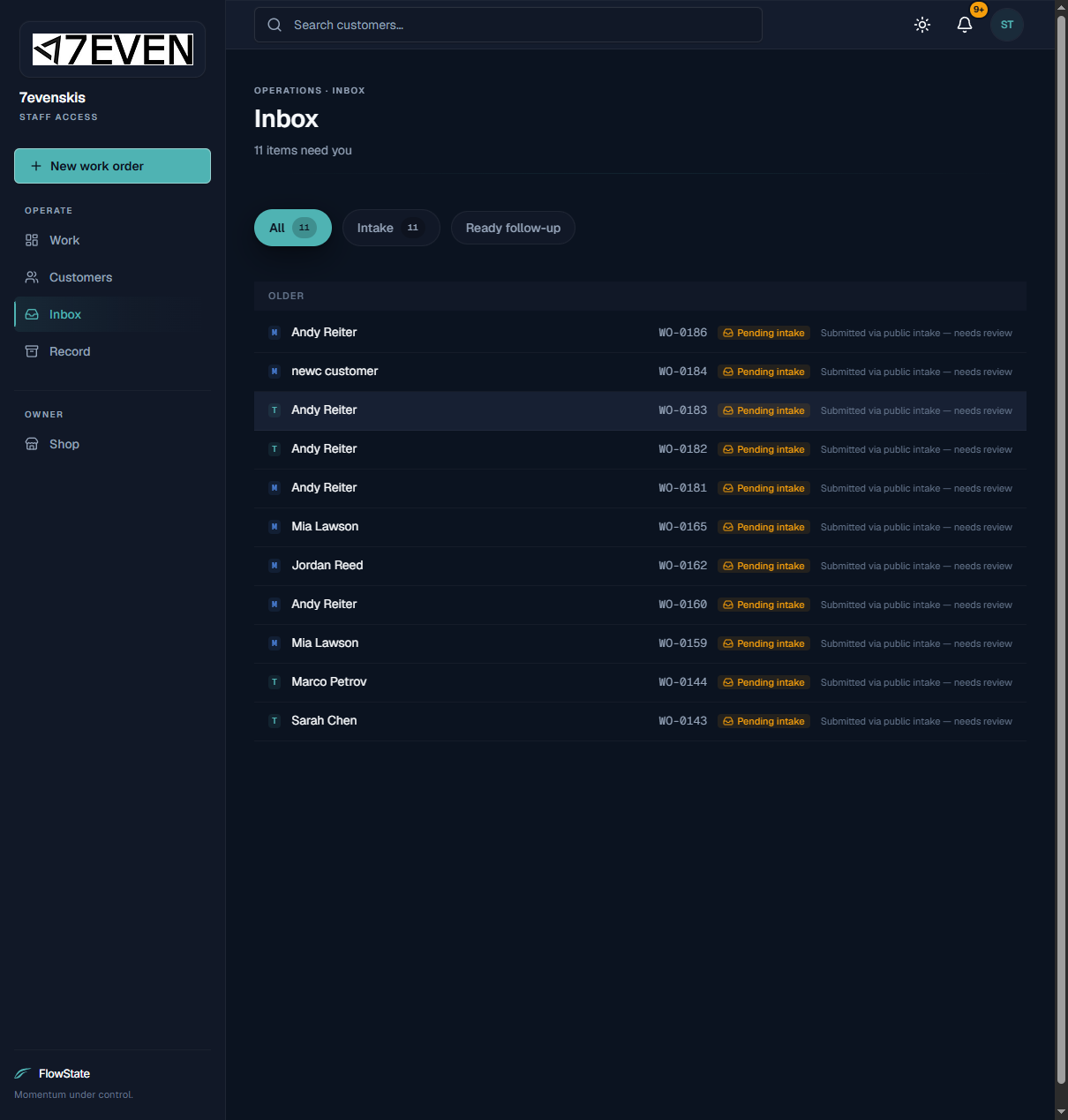
The Inbox is your to-do list. It collects the things that need a person's attention: new requests customers submitted online, and orders that are ready but the customer hasn't come in for. Working the Inbox keeps gear moving and shelves clear.
Who can use it
- Everyone on your shop's team can use it.
How to use it
Open the Inbox
- Click Inbox in the left menu. The header shows how many items need you.
Filter what you're looking at
Use the tabs at the top:
- All — everything that needs attention.
- Intake — new requests submitted through your online page.
- Ready follow-up — orders that are ready/notified and waiting on the customer.
Review and accept an online request
- On the Intake tab, click a request (marked "Submitted via public intake — needs review").
- The work order opens. Check the customer and equipment details.
- Set a Promised by date and click Save.
- For a mount, send and collect the waiver — see Mounting Agreements.
- Click Confirm intake to make the job active. See Managing a Work Order.
Follow up on a pickup
- On the Ready follow-up tab, click an order.
- Call the customer using the number on the order, or text them from Messages if your shop's texting is on. The automatic ready notice is sent once per order.
What to expect
- Each Inbox item links straight to the related work order, so you can act in one or two clicks.
- Online requests appear here and in the Pending intake column on the Work board until you confirm them.
- The notifications bell at the top of the screen shows the same recent activity, with a View all notifications link.
- Once you confirm an intake or finish a pickup, it stops asking for attention.
Limitations
- The Inbox surfaces work that needs action; it isn't a full history. For that, use The Record.
- An online request isn't a confirmed job until you review and confirm intake. Until then it sits in Pending intake.
- You only see items for your own shop.
Frequently asked questions
What's the difference between the Inbox and the notifications bell? They show the same kinds of items. The bell is a quick dropdown from any screen; the Inbox is the full page with filters for working through everything.
Where do "Intake" items come from? From customers using your online request page. See Online Service Requests.
A request looks like a duplicate or a test. Can I ignore it? Review it first. If it's not a real job, check how your shop handles unwanted requests rather than leaving it sitting in Pending intake.
Do customers see the Inbox? No. The Inbox is staff-only.
Troubleshooting
- An online request is missing details. Customers fill in what they can. Confirm the rest with the customer, then complete the order before confirming intake.
- The count won't go down. Make sure you actually confirmed intake (for requests) or notified/closed the pickup. Refresh the page to update counts.
- I confirmed a request by mistake. It's now an active Received job on the Work board. Manage it from there; work orders are never deleted.