Shop settings are where your shop sets up everything that makes FlowState work the way your shop does: your name and logo, the services you offer and their prices, the mounting waiver customers sign, and how customers are messaged when their gear is ready. Settings are organized into five tabs: Account, Brand, Pricing, Agreement, and Messaging.
Who can use it
- Anyone with a login can open Shop settings. Most shops agree on one person to manage prices and messaging.
How to use it
Open Shop settings
- Click Shop in the left menu (or your initials → Settings).
- Use the tabs to move between sections.
Account tab
- View your Profile: email, active shop and last login.
- Change password: enter your Current password, a New password (at least 12 characters), confirm it, and click Update password. Changing it signs you out on other devices.
Brand tab
- Edit your Shop name.
- Upload a Logo (PNG, JPG, or WebP, up to 2 MB) — drag a file in or click to choose. You can also Remove logo.
- Click Save changes. Your name and logo appear in the app, on customer agreements, and on your public request page.
Pricing tab
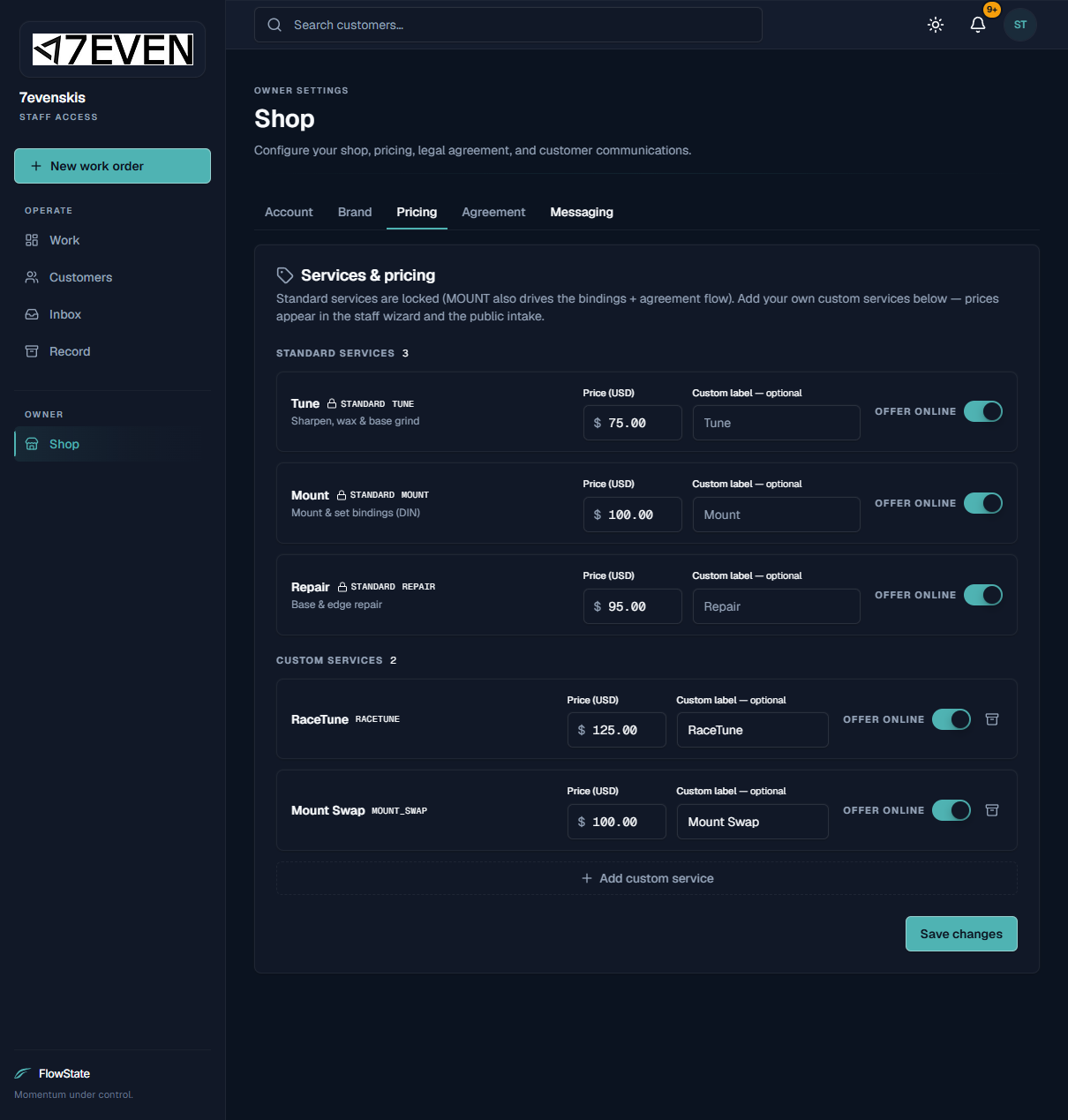
- Standard services (Tune, Mount, Repair) are always available. For each you can set the Price, add a Custom label, and toggle Offer online.
- Custom services (like RaceTune or Mount Swap) can be added with Add custom service, priced, labelled, toggled online, and Archived when no longer offered.
- Click Save changes. Prices appear in the staff New Work Order wizard and on the public request page.
The standard service types are fixed, and Mount always drives the bindings details and the waiver flow — that can't be turned off for mounts.
Agreement tab
- View the mounting waiver customers sign for mount jobs, including its Title, Jurisdiction, and full text.
- Click Edit to change the wording. The waiver applies to all mount orders.
Messaging tab
- Ready-for-pickup text message: edit the text customers receive automatically when their order is ready.
- Text messaging (SMS): shows your shop's texting number. FlowState sets it up with you during onboarding, after carrier approval.
- Email: set the Sender address customers see, an optional Reply-to address for replies, and turn email notifications on or off. Click Save.
What to expect
- Save buttons stay greyed out until you change something.
- Price and branding changes flow through to the New Work Order wizard and the public request page.
- Turning Offer online off for a service hides it from customers but keeps it available to staff at the counter.
- The waiver you set is the exact text customers sign on every mount.
Limitations
- Standard services (Tune, Mount, Repair) can't be removed — only re-priced, relabelled, or hidden from online.
- Mount always requires the fitting details and the signed waiver; this is built in and can't be disabled.
- Your texting number is set up by FlowState, not changed here.
- These settings change how your whole shop works, so changes affect every staff member and customer.
Frequently asked questions
How do I change the price of a tune? Open Shop → Pricing, update the Price for Tune, and click Save changes.
How do I add a service we offer that isn't listed? On the Pricing tab, click Add custom service, name it, set a price, and save.
How do I stop offering a service online but keep it at the counter? Turn off Offer online for that service on the Pricing tab. Staff can still pick it when creating a work order.
Can I change the waiver wording? Yes — on the Agreement tab, click Edit. It applies to all mounts.
Why can't I change my text-message number? Your shop's number is registered with the carriers during onboarding. To change it, contact FlowState.
How do I change who customer emails come from? On the Messaging tab, set the Sender address and optional Reply-to, then Save.
Troubleshooting
- My change didn't take effect. Make sure you clicked Save changes (or Save) for that section.
- The logo won't upload. Use a PNG, JPG, or WebP under 2 MB. Try a smaller file if it's too large.
- Customers aren't getting texts. Text messaging may not be set up for your shop yet. Confirm email is turned on, and call customers as a backup. See Managing a Work Order.
- A new price isn't showing on an order. New prices apply going forward. Start a fresh work order to see them.