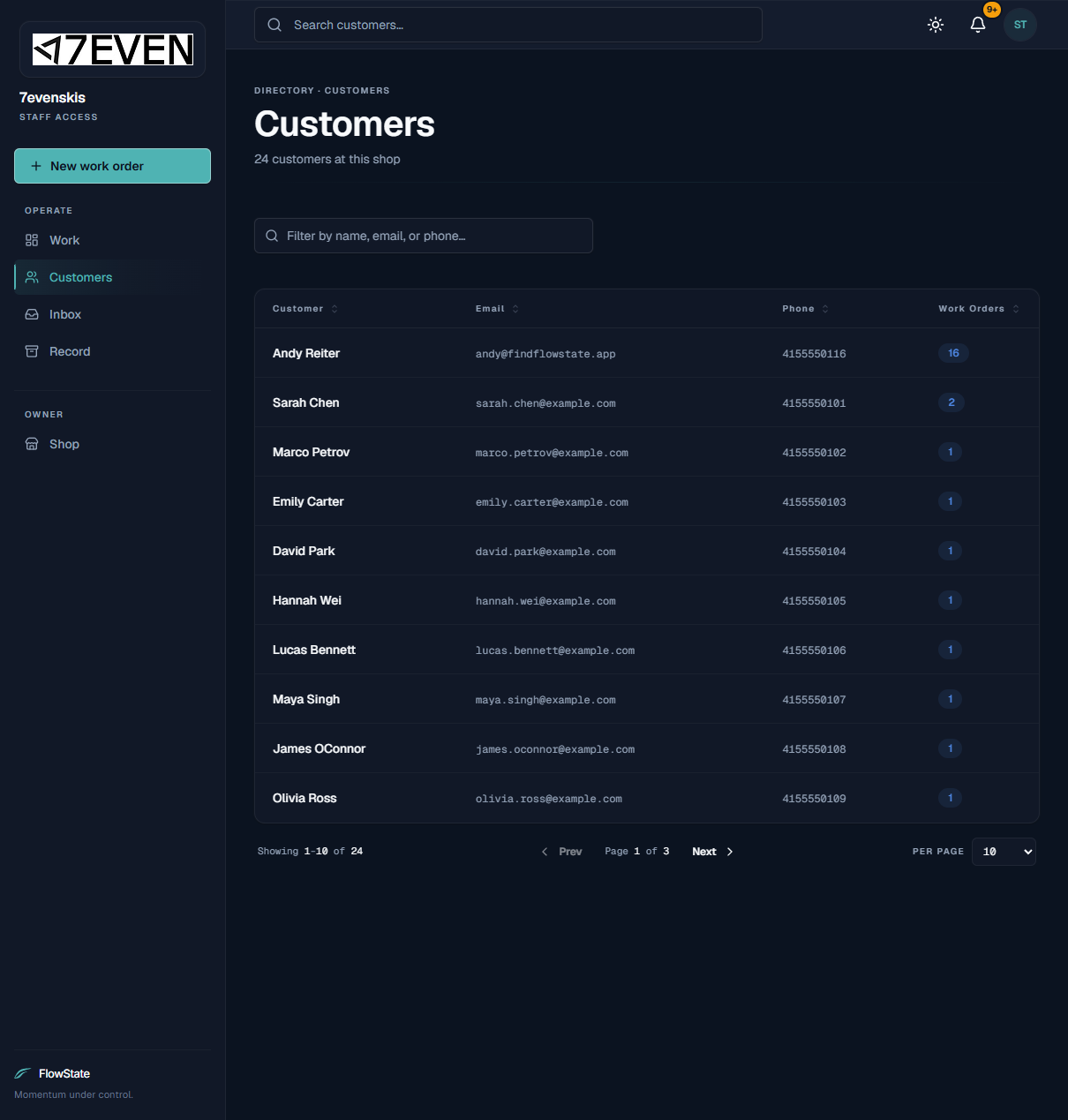
The Customers area is your shop's directory. Every person who has gear at your shop has a profile showing their contact details, their equipment, their work orders, and any signed waivers. It's the fastest way to answer "what's this customer got with us?"
Who can use it
- Everyone on your shop's team can view the customer directory and profiles.
How to use it
Open the customer directory
- Click Customers in the left menu.
Find a customer
- From the directory: type into the Filter customers box to narrow the list by name, email, or phone.
- From anywhere: use the Search customers box at the top of the screen, then click the customer to open their profile.
Sort the list
- Click a column heading — Customer, Email, Phone, or Work Orders — to sort by it.
- Use the page controls at the bottom to move through the list and change how many rows show at once.
Open a customer profile
- Click a customer's row.
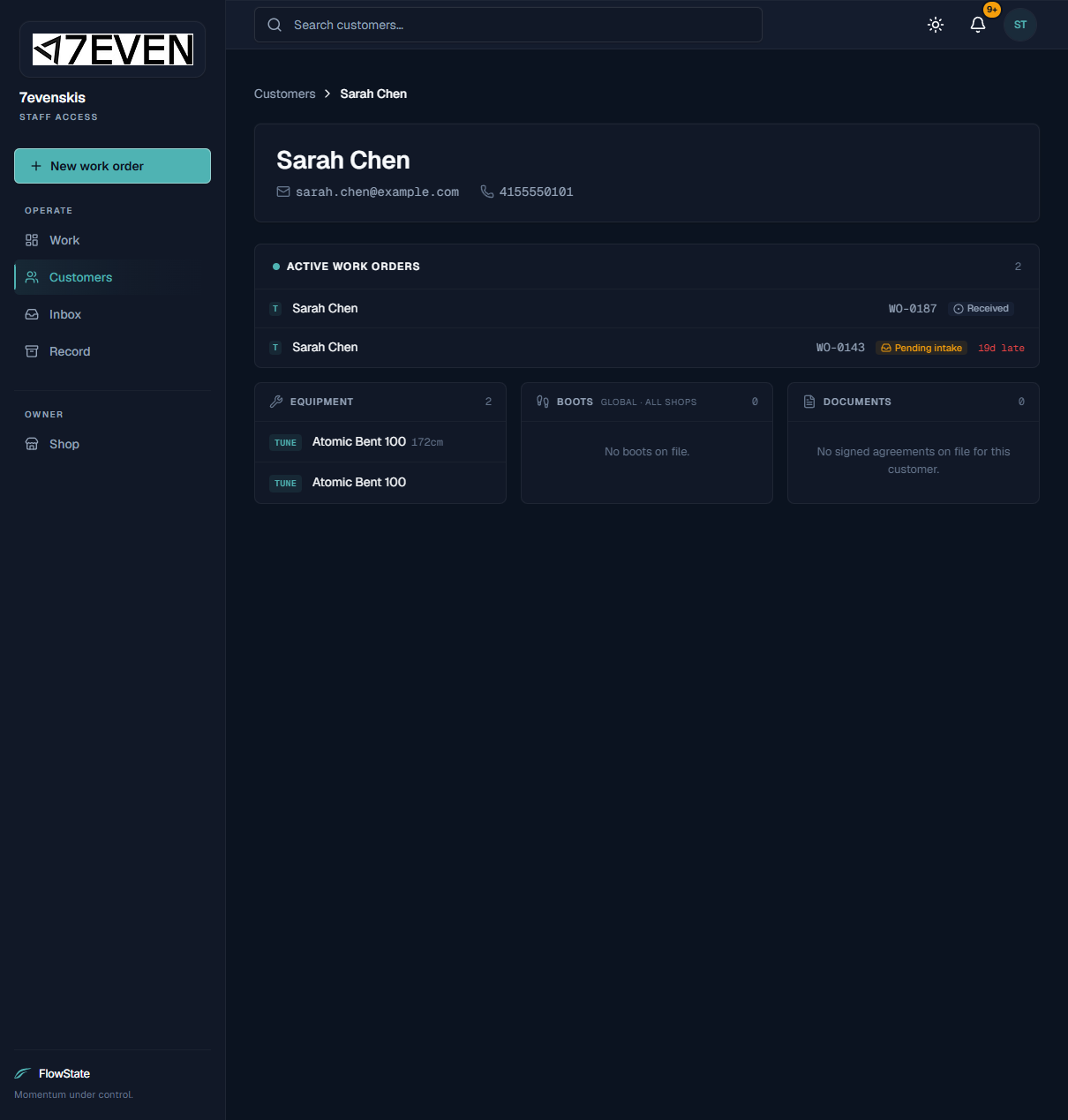
- Their profile opens with these sections:
- Active Work Orders — current jobs; click one to open it.
- Equipment — skis and boards on file for this customer.
- Boots — boots on file (these follow the customer across shops).
- Documents — signed agreements on record.
Jump to a job from a profile
- In Active Work Orders, click any order card to open and manage it. See Managing a Work Order.
What to expect
- The header shows how many customers are at your shop.
- The Work Orders column shows how many orders each customer has — a quick sense of your regulars.
- A profile always reflects the latest jobs and gear, including orders you just created.
- The top-bar search jumps straight to a profile without leaving your current screen first.
Limitations
- The directory shows your shop's customers only.
- Customer profiles are for viewing — there's no "edit customer" button on the profile. Contact details are captured when you create a work order. See Creating a Work Order.
- There's no "Add customer" button in the directory. New customers are added through the New work order flow.
- Boots are shared across shops (marked Global · all shops), so a customer's boots may appear even if they were entered elsewhere.
Frequently asked questions
How do I add a new customer? Start a New work order and use the New customer tab in Step 1. See Creating a Work Order.
A customer's phone or email is wrong. How do I fix it? Their details are captured at intake. If something's off, the simplest fix is to confirm the correct details next time you take in their gear.
Where can I see a customer's past (picked-up) orders? Active jobs show on the profile. For full history including finished orders, search The Record.
Why do I see boots I didn't enter? Boots travel with the customer across shops, so boots added at another shop can show on the profile.
Where are signed waivers? On the customer's profile under Documents.
Troubleshooting
- I can't find a customer. Try searching by email or phone instead of name — spelling differences are common. Remember you only see your own shop's customers.
- The profile shows no work orders. They may have none yet, or their jobs are all finished — check The Record.
- Two profiles look like the same person. They may have been entered twice with slightly different details. Customer records are never merged, so use the profile whose email and phone match the customer.